

Yes. Your bidding history and other details will be added over time, but our new website is built on a new system, so previous login credentials from our old site will not carry over. A new account with a username and password is required to access the new website. You may use your old account email and username to simplify this process. Please contact us if you need any information from your old account in the meantime.
Category: Account & Registration
Managing your account and registration
-
How do I create an account?
- Click the profile button in the top-right corner of the website.
- Click on Create Account below the Login button.
- Select either Create Account or Continue with Google.
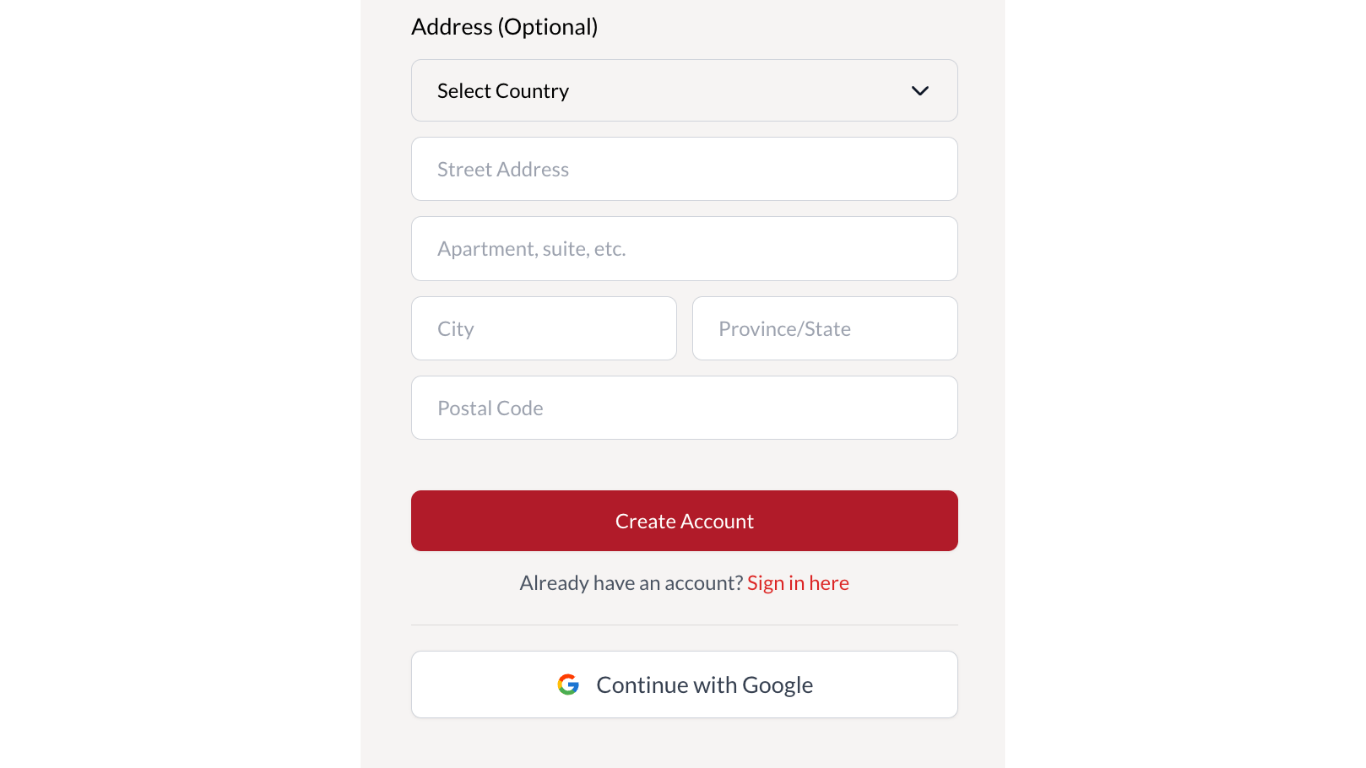
- Complete the relevant fields. Those marked with a red asterisk are required.
- Click Create Account at the bottom of the form (in red).
- Alternatively, select Continue with Google.
- Agree to the terms and conditions by clicking Continue.
- Your account will be created simultaneously with Cowley Abbott and Auction Mobility (bidding platform). You should receive an ‘account successfully created’ confirmation.
- If using the first method Create Account, you should receive a confirmation email with a link to log in to the Cowley Abbott website using the same email address and password you entered on the form.
- If using the second method, Continue with Google, you will receive a confirmation email with a password to log in to Auction Mobility (the bidding platform), as sign-in with Google is not available.
- These credentials are valid for both the Cowley Abbott and Auction Mobility websites.
- Log in to Auction Mobility following this link.
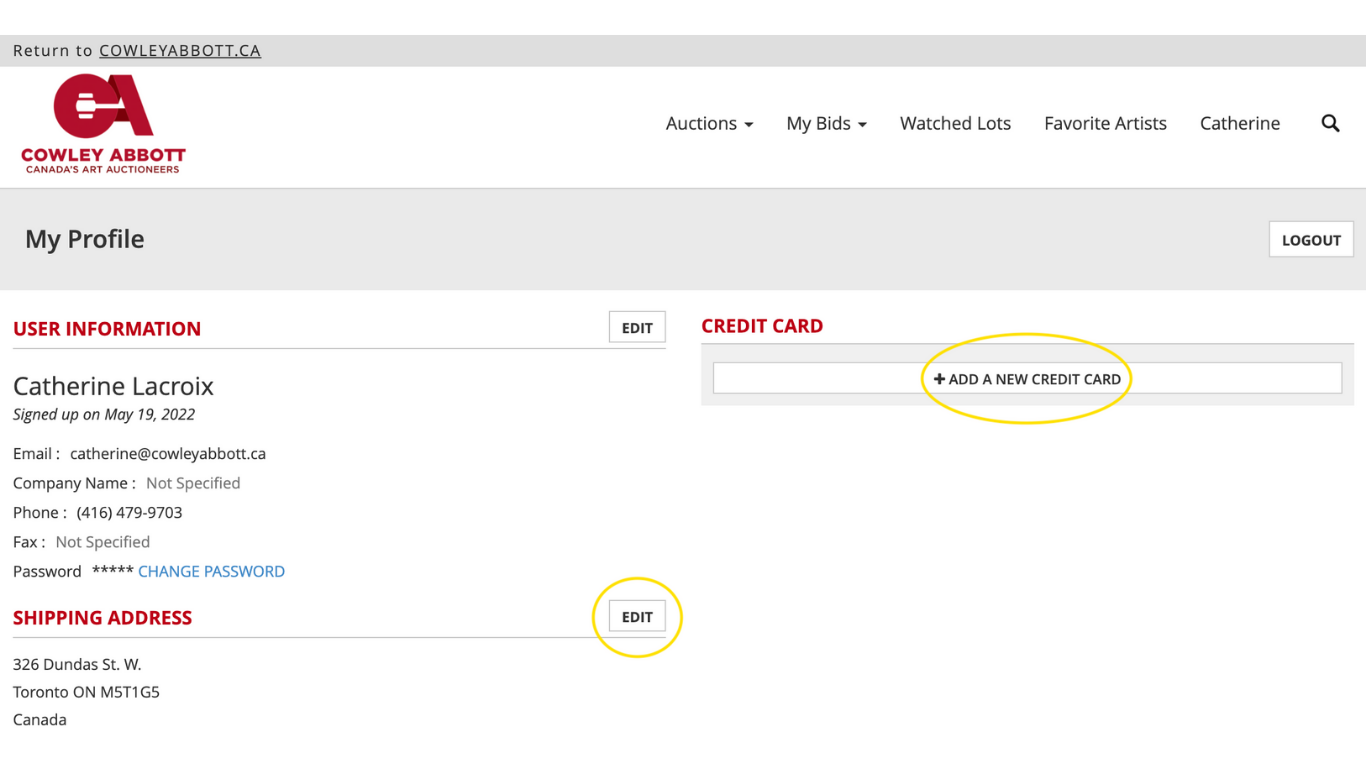
- Select your name in the top right-hand corner (before the search button) to see your Profile.
- Update your address and credit card details in Auction Mobility. Without these completed, you may not be able to claim your successful bids.
-
Guide for resetting your password
It is best to update your password from Cowley Abbott’s website as that will update your Auction Mobility Password simultaneously.
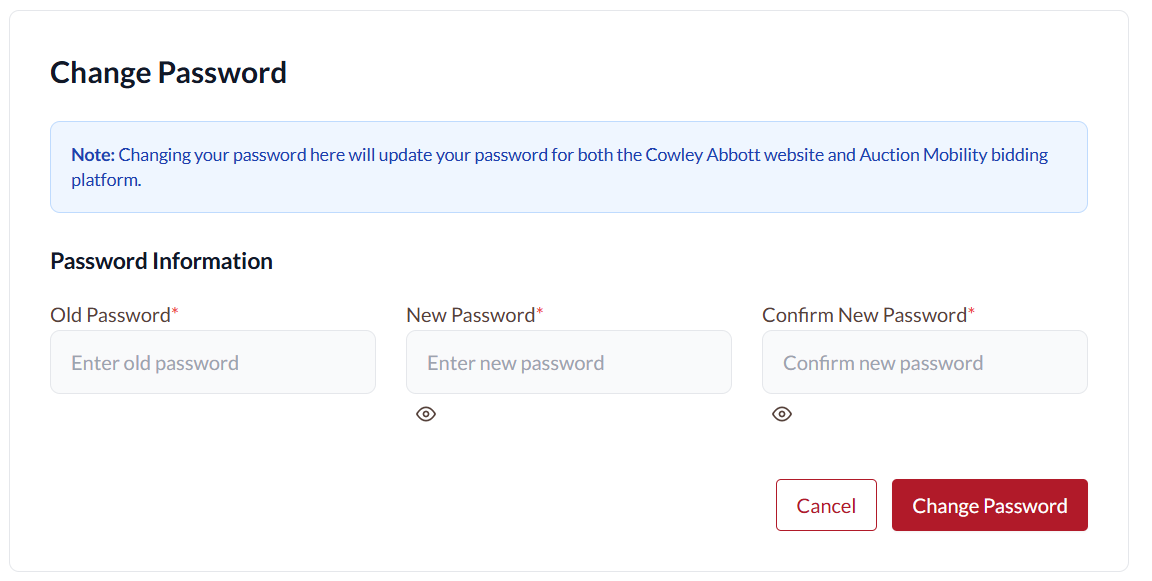
Login to Cowley Abbott and click on the user/person silhouette in the upper right corner. The dropdown menu has an option to change password or reset your password using a One Time Passcode (OTP).
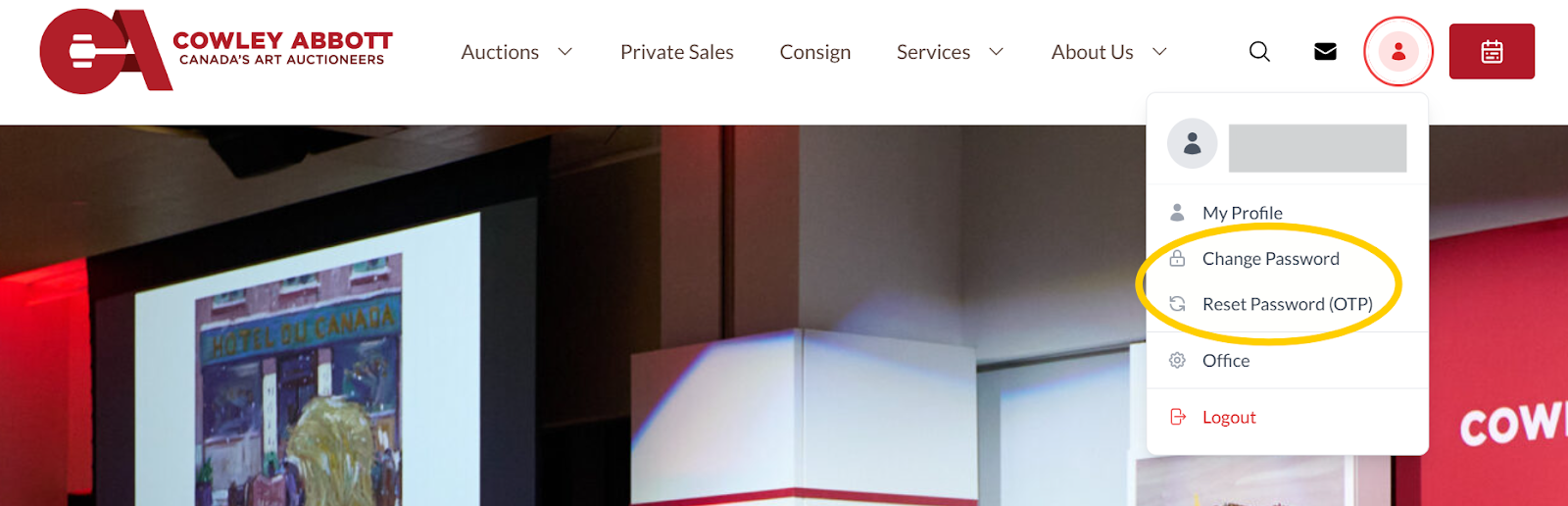
To change your password you need to enter your current password and the new password (twice).
To reset your password, click the button to receive a one time passcode which will be sent to the email address associated with the account.
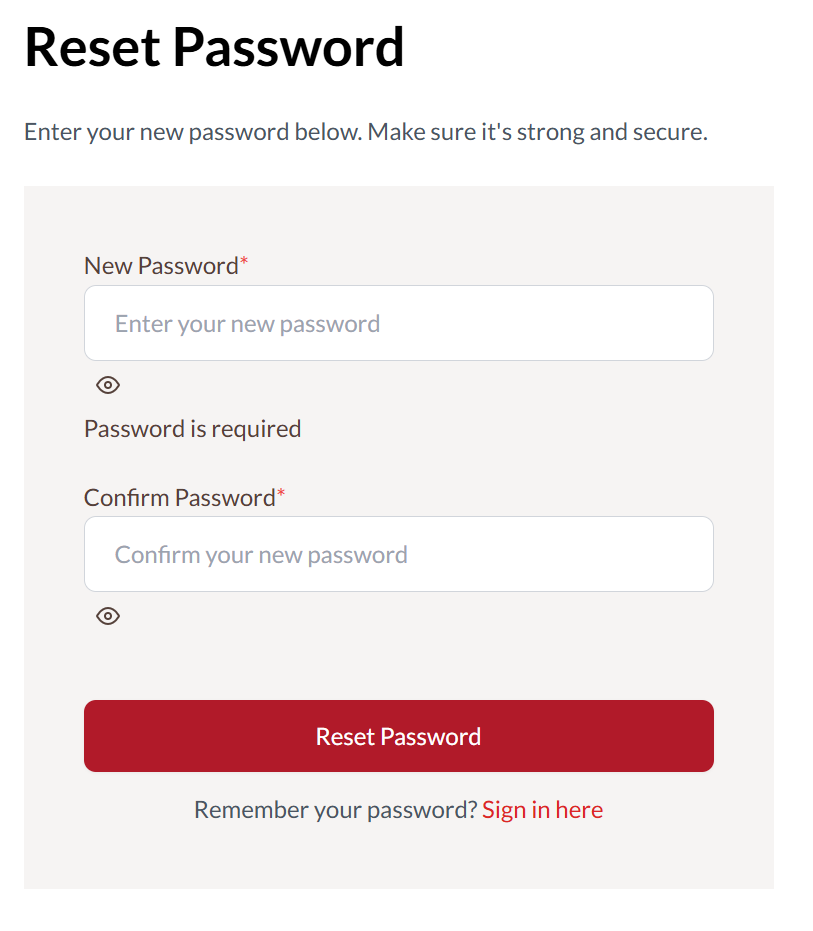
Then simply enter the passcode you receive on the Verify OTP screen and you will be automatically redirected to enter your new password (twice).